
BitLife on PC: Discover Career Paths and Relationship Drama
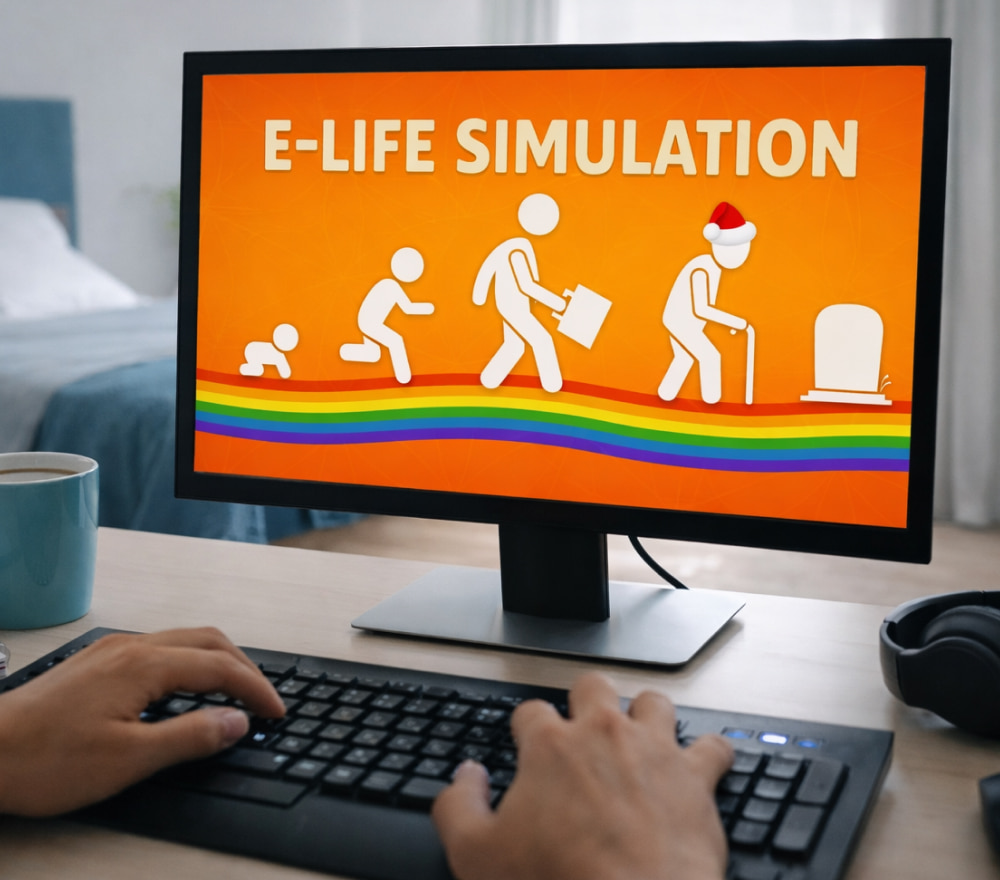
Play BitLife Game on Windows PC
Download NowBitLife is designed primarily for mobile, but many players prefer the comfort of a larger screen, easier multitasking, and keyboard navigation. This guide explains reliable ways to get the game running on a computer, what to expect from performance, and how to avoid the most common installation mistakes.
What You Need Before You Start BitLife on PC
- A stable internet connection for downloading and syncing updates.
- Enough free storage (emulators and app caches can grow over time).
- Updated graphics drivers to reduce crashes and visual glitches.
- Windows or macOS administrator access for installer permissions.
If you want the simplest experience, use an Android emulator that supports the Google Play Store. Another option is installing an Android app package manually, but that approach requires extra care to avoid broken files and unsafe sources.
Method 1: Use an Android Emulator (Recommended)
An emulator creates a virtual Android device on your computer. After installing an emulator, you sign in to Google Play, search for the game, install it, and launch it like on a phone.
- Download and install a Android emulator.
- Open the emulator and complete the initial Android setup.
- Sign in to Google Play and install the game from the store.
- Adjust performance settings if the app feels slow.
Tip: If the game stutters, allocate more RAM/CPU in the emulator settings and enable hardware virtualization in BIOS/UEFI.
Once configured, playing BitLife on PC feels natural for long sessions, especially if you like switching between apps while your character’s life unfolds.
Method 2: Install Using a Direct PC-Oriented Package (When Available)
Sometimes you may find a platform-specific installer or wrapper distributed through reputable stores or official channels. If you see a listing that offers BitLife download for PC, verify the publisher name and reviews before proceeding.
Step-by-Step: Emulator Setup Checklist
| Step | What to Do | Why It Matters |
|---|---|---|
| Virtualization | Enable VT-x/AMD-V in BIOS/UEFI | Improves speed and stability |
| Resource allocation | Assign 2–4 CPU cores and 4–8 GB RAM | Reduces lag and crashes |
| Graphics mode | Switch between DirectX/OpenGL if needed | Fixes black screens and flicker |
| Play Store | Install via Google Play when possible | Safer updates and fewer corrupted installs |
Windows-Specific Notes
If you are using a Windows machine, compatibility is usually straightforward, but performance depends on your CPU and whether virtualization is enabled. Some people specifically look for BitLife download for PC with Windows 10, yet the practical requirement is that your emulator and drivers are up to date.
Manual Install Option: When You Need an APK
In some cases, users choose BitLife APK on PC for manual installation inside an emulator. This can be useful if Google Play sign-in fails, if a regional listing is unavailable, or if you are testing versions. Only use reputable sources and scan files, because corrupted packages can cause boot loops or repeated app crashes.
Troubleshooting: Common Problems and Fixes
- App won’t open: Update the emulator, then switch the graphics renderer (DirectX ↔ OpenGL).
- Black screen: Disable incompatible overlays, update GPU drivers, and restart the emulator.
- Laggy gameplay: Increase assigned RAM/cores and close heavy background apps.
- Login issues: Clear Google Play Services cache inside the emulator and reboot.
If your goal is a clean setup, many guides describe BitLife install on PC using the Play Store because it handles updates automatically and minimizes file integrity issues.
Which PC Version Should You Expect?
Because BitLife is primarily mobile-first, what people call a BitLife PC version is usually the Android app running through an emulator. That still delivers the full game experience in most cases, including updates and event content, depending on your emulator environment.
Free Installation: What Free Really Means
BitLife may be free to install, but optional in-app purchases can exist depending on the platform and region. If you see a page promising BitLife for PC download for free, focus on reputable sources and transparent stores rather than unknown “download hubs.”
- Prefer official stores and trusted emulator providers.
- Avoid installers that bundle extra software you didn’t request.
- Check user reviews and publisher details before installing.
Some players search for BitLife download for PC full version, but the most reliable path is still installing the official app and then accessing content through legitimate purchases or platform entitlements.
Quick Setup Summary
- Install an emulator.
- Enable virtualization and allocate sufficient resources.
- Install via Play Store, then test launch stability.
- Adjust graphics mode if you see visual issues.
If you are comparing wording you might see online, phrases like BitLife for PC download usually point to emulator-based installation rather than a standalone desktop release.
Safety Checklist Before Clicking Download
- Check that the site is reputable and the publisher is clearly identified.
- Decline any “bonus” installers or toolbars.
- Scan downloads with a trusted security tool.
- Keep your emulator and drivers updated.
When people say BitLife for PC free to download, they typically mean the base game can be installed without payment, while optional extras may still be offered within the app. For best results, stick to official sources whenever possible; this approach aligns with what users expect when searching for BitLife download for free for PC without risking unstable installers or questionable files.